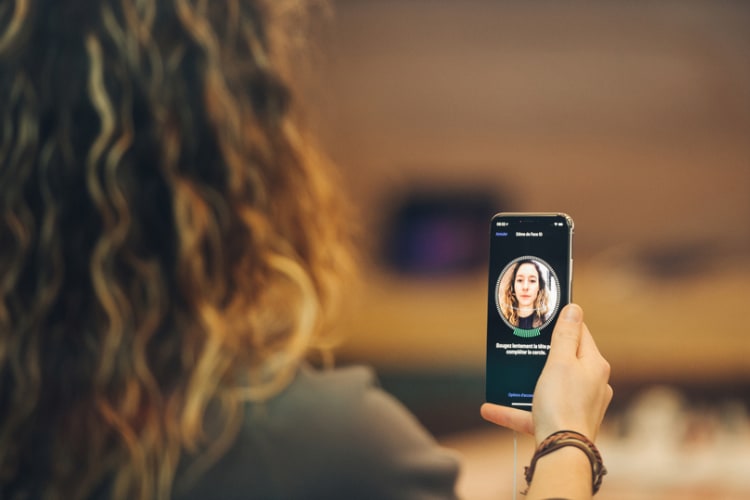
Face ID Not Working? Understanding Why Apple’s Facial Recognition Fails and How to Fix It
Face ID Not Working? Understanding Why Apple’s Facial Recognition Fails and How to Fix It
Many iPhone and iPad users encounter situations where Face ID fails to unlock their device or authenticate a payment, leaving them frustrated and searching for a quick solution. This technology, while advanced, is not infallible and can be affected by a variety of factors ranging from environmental conditions to software glitches. This article explores the most common reasons Face ID stops working, provides practical troubleshooting steps, and explains when a visit to an Apple support center may be necessary.
The Technology Behind Face ID
Face ID uses a sophisticated system of sensors and software to create a detailed map of a user’s face. This system relies on several components working in harmony to recognize a face reliably and securely.
Components of the System
The TrueDepth camera system is the hardware backbone of Face ID. It projects over 30,000 invisible dots onto the user's face to create a depth map. This map is then encrypted and stored in the Secure Enclave, a dedicated area of the device’s chip designed specifically for sensitive data like biometric information.
- Dot Projector: Illuminates the face with a pattern of infrared dots.
- Infrared Camera: Captures an image of the dot pattern.
- Secure Enclave: Compares the encrypted data to the stored template to verify identity.
Apple emphasizes the security of this system, noting that the mathematical representation of a face is encrypted and never shared with Apple, third-party apps, or iCloud. As an Apple spokesperson explains, "The intelligence in Face ID is designed to only unlock when your conscious effort is to look at it and unlock it. It’s a balance of convenience and privacy that starts with the architecture of the hardware itself."
Common Causes of Failure
When Face ID "not working," the issue is usually environmental or related to the device settings. Understanding these causes is the first step toward resolving the problem.
Environmental Factors
The most frequent reason Face ID fails is the environment. The system requires sufficient lighting to read the facial features using infrared technology.Low-light conditions or direct sunlight causing glare can confuse the sensors.Obstructions are another major factor. Wearing sunglasses, face masks, or even having long hair cover significant portions of the face can prevent recognition. Face ID is specifically designed to detect the eyes and mouth; if these are consistently covered, the system cannot confirm identity.
Software and Settings Issues
Sometimes, the problem lies within the software. A glitch in iOS or a corrupted settings profile can disable the feature temporarily. Users often report that Face ID stops working after installing a major software update. This is usually due to the phone requiring a reboot to properly integrate the new code with the existing biometric data.
Additionally, if the "Attention Aware Features" are turned off, the phone may not realize you are looking at it, preventing it from unlocking. It is also crucial to distinguish between Face ID not working for the lock screen and it not working for Apple Pay or App Store purchases, as these issues can be isolated to specific permissions.
Step-by-Step Troubleshooting Guide
If your face is not being recognized, follow these steps in order to diagnose the issue. Most problems can be resolved without needing professional help.
- Check for Simple Obstructions: Ensure your face is clean and unobstructed. Remove sunglasses, hats, or scarves. Make sure you are not wearing a face mask that covers the nose and mouth, as this was a common issue during the pandemic that still trips up the system.
- Adjust Your Lighting: Move to a well-lit area. Avoid standing against a bright window or a direct light source behind you. The infrared system needs balanced lighting to function correctly.
- Restart the Device: A simple reboot can clear temporary software bugs. Hold the power button and either volume button until the slide to power off appears, then turn the phone back on.
- Verify Settings: Go to Settings > Face ID & Passcode. Ensure that the toggle for "Unlock with Face ID" is active for the apps you need. Also, check that "Attention Aware Features" is turned on if you want the phone to unlock just by bringing it to your eye.
- Update iOS: Navigate to Settings > General > Software Update. Installing the latest version of iOS ensures you have the most recent security patches and bug fixes related to biometric authentication.
- Reset Face ID: If a specific profile is corrupted, you can reset the face data. Go to Settings > Face ID & Passcode, enter your passcode, and select "Reset Face ID." You will then need to set up your face again by following the on-screen prompts.
When to Seek Professional Help
Despite trying every troubleshooting step, there are instances where Face ID remains non-functional, indicating a hardware issue.
If the front-facing camera appears cracked, if the device has suffered water damage, or if the screen has been replaced by a third-party vendor, the sensors may be damaged. A common scenario is a screen replacement that did not properly recalibrate the sensors, leading to persistent failure.
In these cases, the solution requires professional intervention. Apple Support or an authorized service provider can run diagnostics to determine if a sensor or the TrueDepth module needs replacement. Ignoring hardware issues can lead to further complications, such as the device failing to recognize emergency contacts in critical situations.
Related Post

Face Id Not Working: Troubleshoot And Fix Facial Recognition Issues with These Proven Solutions
Face ID Not Working? Heres How To Fix It
Fix Face ID Not Working? Heres How To Solve