Set Google As Default Browser: A Comprehensive Guide to Changing Your Default Browser Settings
Set Google As Default Browser: A Comprehensive Guide to Changing Your Default Browser Settings
Setting Google as your default browser involves changing system-level preferences to ensure that web links open in Chrome rather than another application. This process varies by operating system and requires navigating settings menus or using command line instructions. This guide provides step by step instructions for Windows, macOS, Android, and iOS devices.
When you set a default browser, you establish which application handles all http and https links across your device. This affects email clients, messaging apps, and system notifications. Google Chrome offers synchronization features that may motivate users to make it their primary browsing tool.
Understanding Default Browser Settings
The default browser setting is a system configuration that determines which application launches when you click a web link. This setting operates at the operating system level and affects all software that needs to open web content. Modern operating systems provide centralized locations for managing these associations.
Web protocols are registered to specific applications during installation. When you update or install new browsers, they often request to become the default handler. This registration system prevents conflicts and ensures predictable behavior when opening links.
Why Users Choose Google Chrome
Many users prefer Chrome due to its extensive extension library, speed, and integration with Google services. According to StatCounter data, Chrome maintains approximately 65% global market share as of 2024, making it the most widely used browser. Users often select it for compatibility with web applications and developer tools.
- Cross platform synchronization of bookmarks and history
- Wide compatibility with modern web standards
- Built in translation and accessibility features
- Integration with Google account ecosystem
Windows 10 and 11 Configuration
Windows users can change their default browser through the Settings app or legacy Control Panel. Microsoft has made this process more straightforward in recent Windows updates, though some enterprise configurations may require group policy adjustments.
- Open Settings by pressing Windows key + I
- Navigate to Apps section, then click on Default apps
- Locate your current default web browser in the list
- Click on the current browser and select Chrome from the menu
- Verify that http and https protocols show Chrome as their handler
For older Windows versions, the Control Panel provides an alternative path. Users can access the Default Programs section and select Set your default programs to manage associations. This method offers more granular control over protocol specific handlers.
Managing Protocol Associations
Advanced users may need to adjust specific protocol handlers beyond general default settings. Windows allows individual configuration for http, https, ftp, and other web protocols. This is particularly useful in mixed browser environments.
To manage protocol associations:
- Access Default apps settings in Windows
- Scroll to the bottom and select Choose default apps by protocol
- Find HTTP and HTTPS entries in the list
- Click on the current association and select Chrome
- Repeat for other web related protocols as needed
macOS Configuration Process
Apple devices offer a streamlined approach to setting default applications through System Settings. Chrome must declare itself as capable of handling web URLs, and macOS must recognize it as the preferred option.
- Open System Settings on your Mac
- Click on General in the sidebar
- Find the Default web browser option
- Select Google Chrome from the dropdown menu
- Verify that links open in Chrome when tested
macOS maintains its own default browser list that differs from Chrome's internal settings. Even if Chrome is set as default within the browser itself, the operating system may override this preference. Users must ensure both Chrome's preferences and macOS system settings align.
Chrome Specific Settings
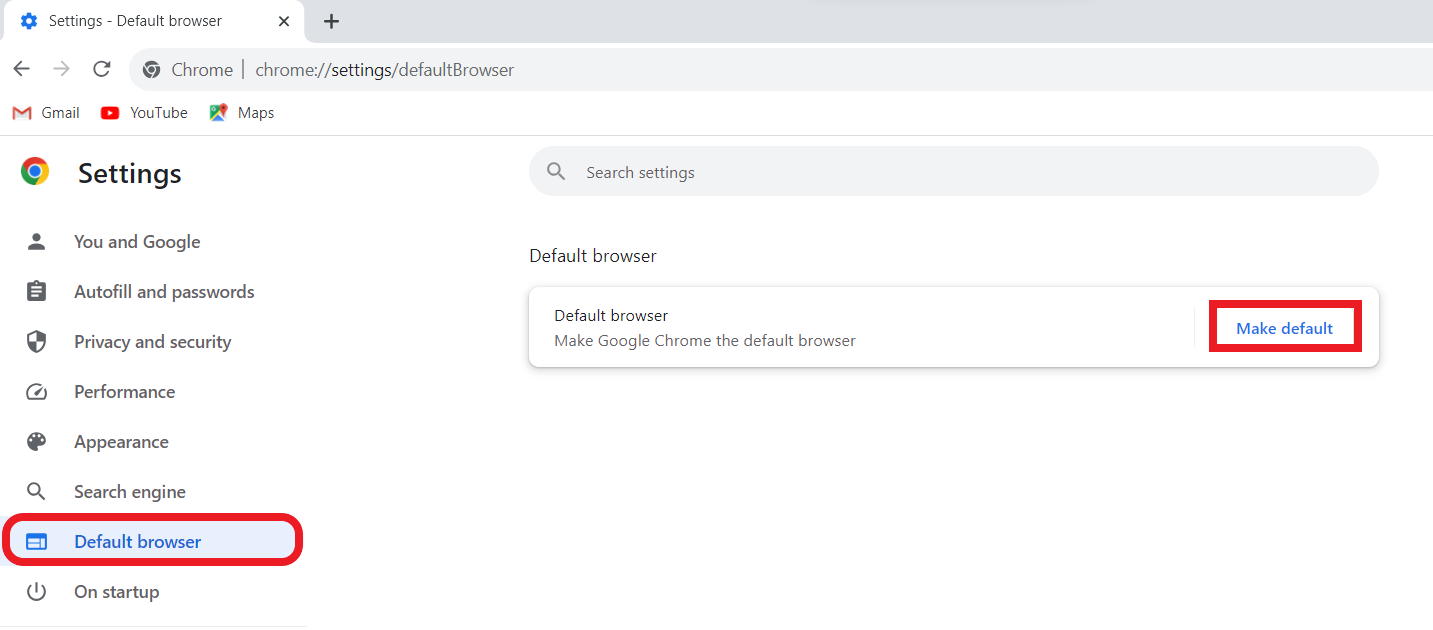
Google Chrome includes options that influence its behavior as a default browser. These settings manage integration with the operating system and determine how Chrome handles URL protocols. Users should verify these configurations after system level changes.
- Open Chrome browser
- Click three dots in upper right corner
- Navigate to Settings, then Advanced
- Open System section
- Ensure Open web pages from apps into other apps is enabled
- Check Default browser setting under Startup
Mobile Device Configuration
Smartphone and tablet configurations differ significantly from desktop environments. Mobile operating systems impose restrictions that limit default browser options, particularly on iOS devices.
Android Configuration
Android devices offer flexible default browser settings due to their open nature. Users can select from multiple browsers available in the Google Play Store. The process varies slightly between device manufacturers' custom interfaces.
- Open Settings app on your Android device
- Navigate to Apps section
- Select Default apps or Special app access
- Tap on Default web browser
- Select Chrome from the list of available browsers
- Test by tapping links in other applications
Some Android manufacturers add additional layers of settings. Samsung devices, for example, include separate settings for home page and search engine that may affect the browsing experience even when Chrome is set as default.
iOS Limitations
iOS presents unique challenges for changing default browsers due to Apple's strict ecosystem policies. As of iOS 14, users can select alternative default browsers, but complete integration remains limited compared to Android and desktop platforms.
- Open Settings app on iPhone or iPad
- Scroll down and tap on Chrome
- Select Default Browser App
- Confirm Chrome as the default selection
- Test functionality by opening web links
According to iOS security documentation, Apple maintains control over certain URL schemes regardless of default browser settings. This means some links may still open in Safari even after changing default settings.
Troubleshooting Common Issues
Even after following instructions carefully, users may encounter issues where links continue to open in previous browsers. Several factors can prevent successful default browser configuration.
Permission Restrictions
Enterprise environments often enforce browser restrictions through group policies. In these cases, individual users may lack permission to change default applications. IT departments typically maintain control over these settings for security and compliance reasons.
Browser Competition
Some browsers employ techniques to maintain or regain default status. Microsoft Edge, for example, periodically prompts users to switch as default browser on Windows devices. Users must periodically verify and maintain their preferred settings.
Configuration Conflicts
- Multiple browsers claiming default status
- Outdated browser versions with compatibility issues
- Conflicting extensions or security software
- Cached protocol associations
When facing persistent issues, users can try clearing browser cache, temporarily disabling security software, or using system reset functions. In some cases, a complete system restart may be necessary for changes to fully take effect.
Verification and Best Practices
After setting Chrome as default browser, users should verify that the change works correctly across different scenarios. Testing should include clicking various types of links in different applications and environments.
- Test http and https links in email clients
- Verify links in messaging applications
- Check system settings and error messages
- Test file download links
- Verify integration with cloud services
Regular verification ensures that browser changes remain effective through system updates and application installations. Users should periodically check default settings, especially after major system updates or when experiencing application conflicts.
Related Post
How To Set Google As Default Browser: The Complete Guide For Every Platform
Why Google Should Be Your Default Browser: The Ultimate Guide
How To Set Google As Default Browser: A Step-by-Step Guide for Every Platform

Tim Duncan’s Turbitious Divorce: The NBA Legend’s Silent Breakup and the Quiet Aftermath