The Ultimate Android Find Guide: Hidden Features, Best Practices, and Pro Tips for Power Users
The Ultimate Android Find Guide: Hidden Features, Best Practices, and Pro Tips for Power Users
Modern Android devices offer far more than a simple search bar. The built-in Android Find ecosystem, encompassing both the "Find on Device" web interface and the integrated search capabilities, represents a powerful yet often underutilized layer of control and utility. This guide dissects the architecture, capabilities, and limitations of Android Find, providing a comprehensive roadmap for users seeking to master their devices.
The core functionality of Android Find is fundamentally about regaining control. Whether you have misplaced your phone on the couch or need to secure a lost device before a thief accesses your data, the system is designed as a last line of defense. Beyond basic location tracking, it serves as a centralized command center for managing the digital identity and hardware state of your Android phone.
Understanding the distinction between the physical search action on the device and the remote web interface is the first step toward effective mastery. While you might use Google to find a website, Android Find is a proprietary system service that operates independently of standard web searches, creating a closed ecosystem focused solely on the security and retrieval of the hardware.
The Architecture of Android Find
The "Find on Device" framework is not a single feature but rather a layered system built upon connectivity, account verification, and hardware integration. It relies on a persistent connection between your phone and Google’s servers, ensuring that commands issued from a web browser are reliably transmitted to the physical device. This architecture prioritizes reliability over speed, ensuring that critical commands like lock or erase are executed even if the phone is in a low-power state.
At its foundation, the system requires a Google Account. This account acts as the cryptographic key and the communication channel. Without being signed into the same Google account on the device and the web interface, the Find functionality is essentially rendered inert. This creates a secure, closed-loop environment where access is strictly gated by authentication.
Core Components and Dependencies
To effectively utilize Android Find, several prerequisites and background processes must be functioning correctly. These components work in tandem to ensure the system is responsive when you need it most. If one element fails, the entire chain can break, leaving you unable to locate or secure your device.
* **Google Account:** The primary authentication mechanism. The account used to sign in to the device must match the account used to access the find device web page.
* **Internet Connectivity:** The phone requires mobile data or Wi-Fi to communicate its location and receive commands. "Find on Device" cannot function in Airplane Mode without a prior location cache.
* **Location Services:** GPS, Wi-Fi, and cellular network location must be enabled. While the system can provide a rough location based on cell towers if GPS is off, precise mapping relies on GPS being active.
* **Google Find My Device Service:** This is a core background service that runs on the phone, constantly reporting its status and location to Google’s servers.
* **Web Browser and Internet Access:** To issue commands remotely, you need a separate device with a modern web browser and an internet connection.
Accessing the Android Find Interface
The primary method for interacting with Android Find remotely is through the dedicated web portal. This interface is designed for emergency access rather than casual use, prioritizing security and critical functionality over a sprawling feature set. Knowing the exact URL and login process is essential for immediate action during a crisis.
The official portal is located at **https://www.google.com/android/find**. Attempting to navigate to this page while already signed into your Google account on the browser will typically trigger a secondary confirmation step, asking you to re-enter your password for security. This is a deliberate measure to prevent unauthorized access if you leave your computer logged in.
Step-by-Step Access Guide
1. On a computer or another mobile device, open your preferred web browser.
2. Navigate directly to `https://www.google.com/android/find`.
3. You will be prompted to sign in with your Google account. Use the credentials associated with the lost device.
4. Upon successful authentication, the main "Find your Android device" interface will load, displaying a map and a list of available devices associated with that account.
5. Select the target device from the list if multiple devices are present.
The Core Capabilities: What You Can Do
Once access is granted, the interface presents a suite of tools designed to address specific scenarios. Each action is a command that is securely sent to the target device, instructing it to perform a specific task. These commands are prioritized based on urgency, with the ability to lock or erase a device taking precedence over simpler location checks.
The most common use case is tracking a misplaced phone. The system uses a combination of the phone's last known location and its current network pings to place a digital marker on the map. This location data is typically accurate to within a few meters, though it can be affected by building materials, weather, and network congestion. For many users, this immediate visual feedback is enough to retrieve the device from under a pile of laundry or behind a cabinet door.
Available Actions Explained
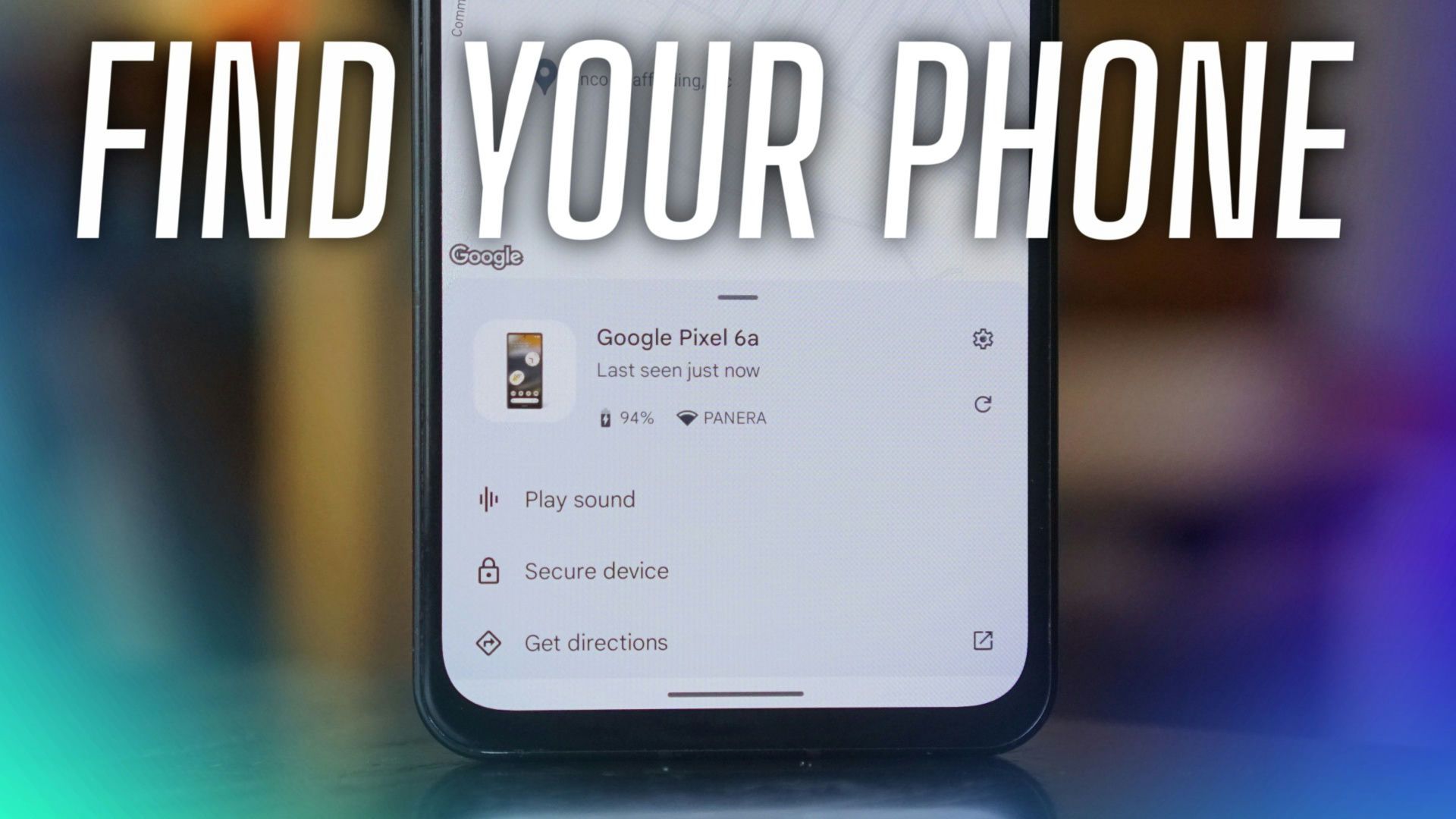
The "Play Sound" feature is the first line of defense for a phone that is nearby but silent. When triggered, the device bypasses its current volume settings and plays the maximum allowed ringtone or alert tone for a full five minutes. This is exceptionally useful for finding a phone that has been set to vibrate or muted in a noisy environment like a restaurant or a movie theater.
The "Secure Device" option, often referred to as "Lock," is the critical step for protecting data. This action instantly locks the phone with a temporary password that you create. Even if the device has a weak lock screen like a slide pattern, this command overrides it with a secure PIN or password that only you know. This is the most important action to take if you suspect the phone is in the possession of someone else.
The Lock Screen and Emergency Information
One of the most powerful and underused features of Android Find is the ability to add a custom message to the lock screen. When you secure a device remotely, you have the option to type a note that will be displayed prominently on the lock screen. This is a vital communication channel if the phone was lost in public.
You can use this space to provide contact information for the honest finder. Instead of a generic "Lost and Found" sign, you can type a message like, "Found my phone? Please call [Your Name] at [Your Number] and I will reward you." This significantly increases the chances of a honest person returning the device, as they have immediate, verified contact information without needing to bypass your security.
Best Practices for the Lock Screen Message
* **Keep it concise:** A long paragraph of text will not be read. A short, clear message is most effective.
* **Include a callback number:** A direct phone number is more effective than an email address.
* **Mention a reward:** A small incentive can be a powerful motivator for the finder.
* **Do not include sensitive data:** Never put your home address or full password in this public field.
Security Considerations and Limitations
While Android Find is a robust tool, it is not without its limitations. Understanding these constraints is crucial for setting realistic expectations. The system relies on the integrity of the cellular network and the internet; if a thief disables the SIM card or puts the phone into Airplane Mode immediately after stealing it, remote tracking becomes significantly more difficult, though not always impossible if the phone was recently active and cached its location.
Another critical limitation is that "Find on Device" requires the phone to run a relatively modern version of Android. Devices running Android 8.0 (Oreo) and above have the most reliable and feature-rich implementation. Older devices may have a stripped-down version of the service or may lack certain features like the ability to erase the device remotely. Furthermore, the effectiveness of location accuracy is directly tied to the user's privacy settings. If a user has disabled Location History for their account, the precision of the map ping may be reduced.
Beyond the Basics: Integrating with Google's Ecosystem
The true power of Android Find is realized when viewed as a single component of Google's broader security and utility ecosystem. It does not operate in a vacuum. Features like Google Timeline, which shows your location history, can provide context for where you might have lost a device. Similarly, the integration with Google accounts means that securing the device also protects your Gmail, Drive, and Play Store accounts that are signed in on the phone.
This integration extends to third-party applications as well. While the core "Find" service is proprietary, many device manufacturers build upon this foundation. Samsung, for instance, integrates its "Find My Mobile" service with the core Android Find functionality, adding features like smart camera triggers or the ability to use a Galaxy Watch to ring the phone. These extensions demonstrate how the core Android Find platform serves as a reliable bedrock for enhanced device management.
The Human Element: Real-World Scenarios
The theoretical capabilities of Android Find become truly meaningful when applied to real-world situations. Consider the case of a commuter who realizes they have left their phone on a train. The immediate panic is often followed by a logical sequence of actions enabled by the platform.
First, they would use a colleague's phone or a kiosk to access `google.com/android/find`. They would see a map with a ping indicating the last known location of the device. They might play the sound to see if it is within earshot, perhaps inside a bag on a seat. If the phone is not within reach, they would immediately select "Secure Device" to lock the screen and add a message with a contact number. This entire sequence can be executed in under a minute, transforming a moment of panic into a coordinated recovery effort.
The Future of Device Recovery
The evolution of Android Find is indicative of a larger trend in consumer technology: the shift from simple utility to comprehensive security. What began as a basic "Lost Phone" tracker is now a robust security tool capable of remote wiping, custom messaging, and deep hardware integration. As mobile operating systems continue to mature, we can expect the Find functionality to become even more proactive, potentially incorporating machine learning to predict loss scenarios or integrating more tightly with IoT ecosystems to create a wider safety net for our devices.
For the end-user, the takeaway is clear. The "Find" feature is not just a convenience; it is a critical component of modern digital security hygiene. By understanding how it works, maintaining the necessary prerequisites, and knowing how to act quickly, anyone can transform their Android device from a potential liability into a recoverable asset. The control is in your hands, accessible with just a few clicks on a web browser.
Related Post